
So now we have our NAS up and running, but we want to have Plex and even our own WordPress site, right? Good thing we have plenty of storage on our NAS! But we need to tell Proxmox to share the NAS with the containers we plan on running. This is not as simple as going to the running container and mapping the NFS share because containers are run in restricted mode on Proxmox.
1 – Map the share on Proxmox:
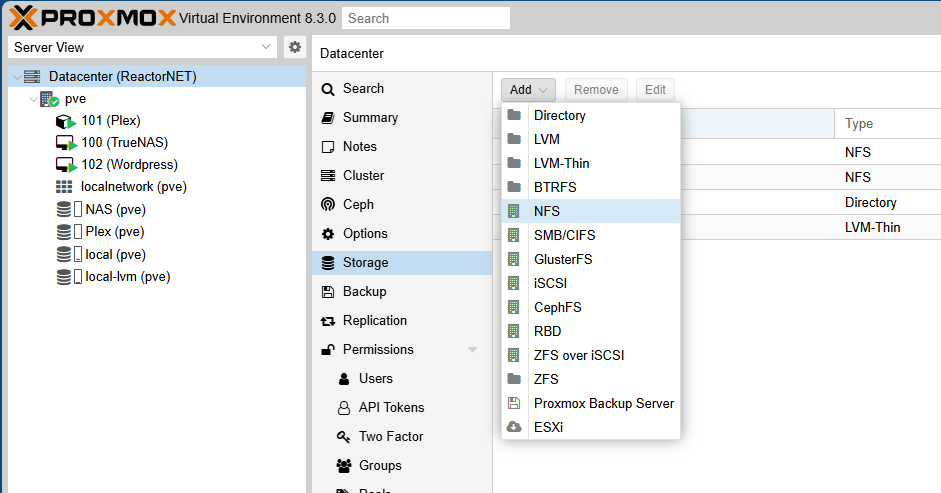
Go to your local Datacenter on Proxmox and then to “Storage”. Click on “Add” and choose the type of sharing you want to add. In our case is NFS.
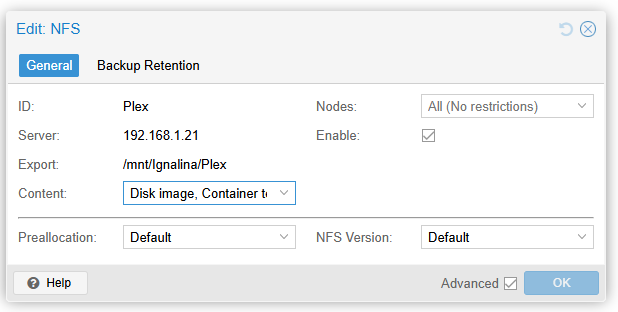
Add all the details of your TrueNAS server, the Export can be found on TrueNAS:
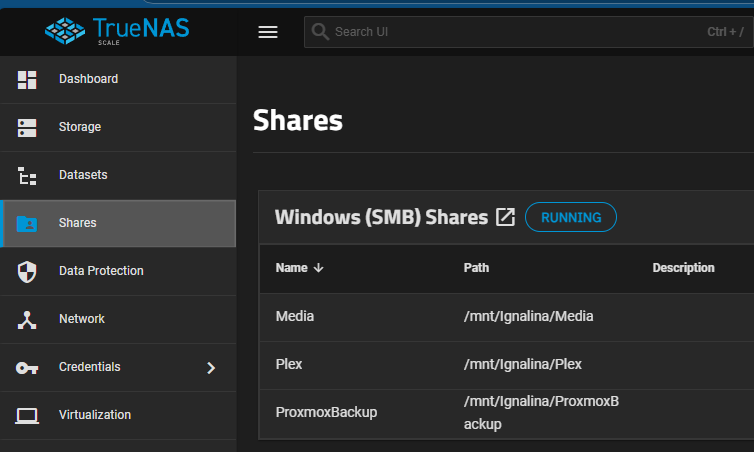
With all that done, now we need to map the NFS folder we just created in Proxmox to our VM.
Navigate to pve > Shell in Proxmox, this shell relates to the Proxmox enviroment and not to a specific VM or Container.
Now type the following command:
pct set 101 -mp0 /mnt/pve/Plex,mp=/mnt/Media
pct: container package
set 101 – this tells the command your container ID, the number before the name on the leftside of your CT in Proxmox.
mp0 – the name of the mount point
/mnt/pve/*** – the path of the NFS share you just created in Proxmox
mp=/mnt/Media – the folder on the container in which the share will be mounted
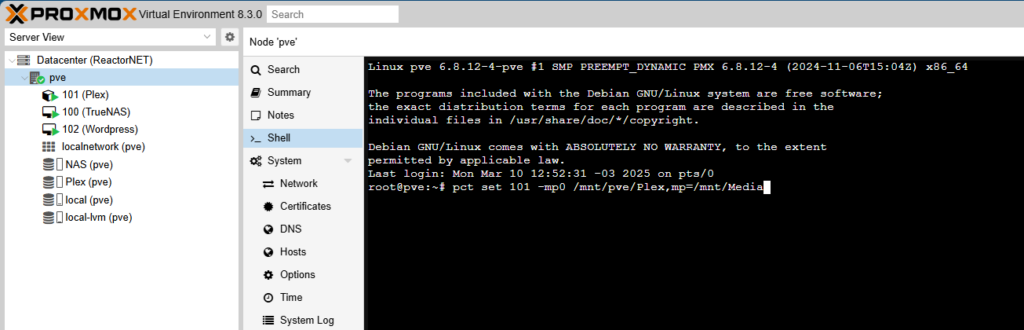
Now, with that step done, you can navigate inside your container and you will find the folder /mnt/Media that will be your share. Now we can use that in Plex to talk to our NAS!
